General
New Features
- Configurable Quick Advanced Selection (Alt)
-
- The Quick Advanced Selection keyboard shortcut (Alt) is now configurable across many different entity types. Previously it was only possible to use this keyboard shortcut to quickly select Elements > By Faces & Edges, and Nodes & Lines > By Path. Now you can use the provided configuration dialog to associate your preferred advanced selection method to any of the supported entity types.
- All Quick Advanced Selection methods support either appending or deselecting by using the Ctrl or Shift modifiers, respectively.
- Access the Quick Advanced Selection configuration dialog from either Preferences > Mouse Controls, or the Right-Click > Select menu.
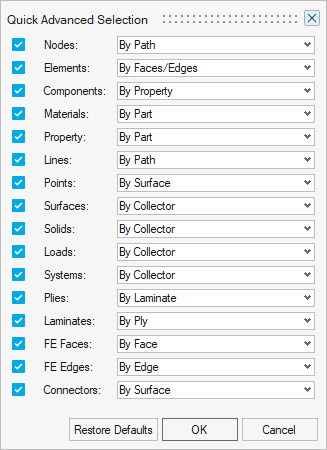
Figure 1. - Face/Edge Colors
- The model color controls in the View Toolbar have been split into face & edge colors. Face color is both mesh/geometry and edge color is the edges of those entities. The icons update based on the current colors being displayed in the graphics.
- Geometry & Mesh Visualization
- A new tool to control geometry and mesh visualization of selected components has been added to the View Toolbar. It is available under the Show/Hide drop-down or by pressing X.
- Section Library
- The automotive focused section library has been added to promote rapid
creation of full vehicle architecture concept models. The library
consists of various sections from the 2011 Honda Accord Body in White
(BiW) model*. The section library follows a unique BOM and
numbering scheme.
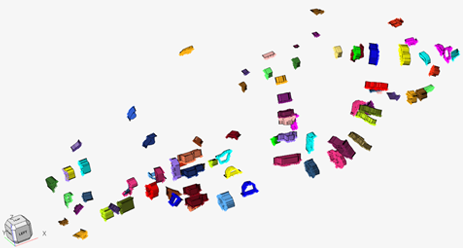
Figure 2. Sections from Section Library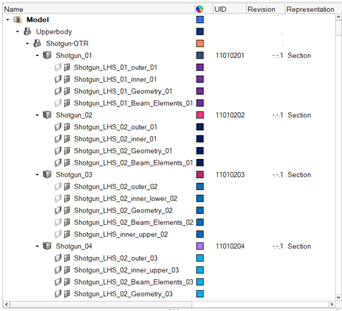
Figure 3. BOM with Unique Numbering Scheme
Enhancements
- Selection of Faces and Edges
-
- Faces and Edges selectors have been enhanced to support:
- Advanced selection methods: Right-click > Select, or Spacebar
- Selection saving & retrieving: Right-click > Select > Save/Retrieve
- Selection modifiers: Displayed, Reverse, Adjacent, Attached, and so on
- New Edge type options are available when using the Edges
selector, or the By Edge advanced selection method for Elements
or Nodes:
- Edge types: All edges, free edges only, free loops only
- When selecting Nodes > By Path, an additional dropdown menu allows including washer layers to free loops selections.
- Faces and Edges selectors have been enhanced to support:
- Element Path Loops Area selection
- Area selection using Element Path Loops is now faster and more robust. It has also been enhanced to restrict the area selection to only elements inside of a continuously connected enclosed area. To use this feature, enter the By Path advanced selection dialog for Elements (Spacebar, or Right-Click > Select > By Path), and enable the Fill Path Loops option.
Resolved Issues
- Issue with second order elements not being selected when using the Fill Path Loops option inside the By Path advanced selection method for Elements has been fixed.