Revolve Faces
Revolve a face, line, or 2D edge.
-
On the Geometry tab, in the
Modify group, click
the Revolve Faces tool.

-
Choose from the following options:
- Drag the face, line, or 2D edge.
- Drag the white arrow on the compass.
- Enter an angle in the microdialog.
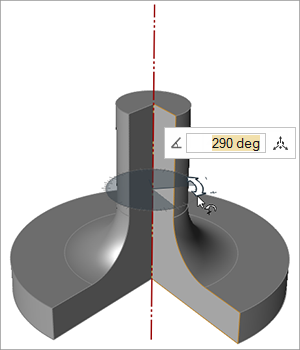
Figure 1. Revolving a Part
Tip:
- To create a new part, hold down Shift or Ctrl while dragging.
- To reposition the axis of revolution using the Move
tool, click
 in the microdialog.
 - Drag the rotation arrow by its midpoint to snap to snap points. Clicking elsewhere on the rotation arrow will temporarily disable snapping.
- Selecting a face from a 2D sheet automatically revolves the face a full 360 degrees. Once you drag the face, the only way to get back to a full 360 degrees is to enter 360 in the microdialog.
Keyboard Shortcuts & Mouse Controls
| To | Do this |
|---|---|
| Activate the Push/Pull tool | P or double-click |
| Make the object a new part | Shift or Ctrl |
| Exit tool | Right-click and mouse through the check mark to exit, or double-right-click. |