HyperWorks
HyperWorks

2021.2

  1. Home
  2. Manage Files and Data

    Create, open, import, and save models.

  3. Import Files

    Import various file types into the selected client.

  4. Solver Deck Import

    Import FE models for supported solver interfaces.

  5. By Component Hierarchy

  • What's New
  • Get Started
  • Video Tutorials
  • Manage Files and Data
  • Sessions and Report Templates
  • Interface with External Products
  • Entities and Solver Interfaces
  • Model Build and Assembly
  • Sketching
  • Geometry
  • Meshing
  • Elements
  • Morph
  • Connectors
  • Composites
  • Validate
  • Crash and Safety
  • Airbag Solutions
  • Design Space
  • Design Explorer
  • Aerospace
  • Aeroelasticity
  • Certification
  • Marine
  • Squeak and Rattle Director
  • Geomechanics Director
  • Panels
  • Results Data
  • Plot Data
  • Multibody Modeling
  • Media Files
  • Text Files
  • Tabulate Results
  • Publishing and Reporting
Index
HyperWorks

2021.2

HyperWorks
  • What's New

    View new features for HyperWorks 2021.2.

  • Get Started

    Learn the basics and discover the workspace.

  • Video Tutorials

    Discover HyperWorks functionality with interactive tutorials.

  • Manage Files and Data

    Create, open, import, and save models.

    • Supported File Types

      The following file types can be read, depending upon the active application.

    • Create New Files

      Create a new file.

    • Open Files

      Open a file.

    • Import Files

      Import various file types into the selected client.

      • CAD Import

        Learn about the CAD readers supported by HyperWorks and the options available for importing CAD geometry data.

      • Solver Deck Import

        Import FE models for supported solver interfaces.

        • Entity Import Behavior

          Overview of how entities are imported.

        • Import Error Messages

          When an external input translator is used to import data, HyperWorks creates a file for messages in the directory in which the program was started.

        • By HM Comment

          An overview of how solver interfaces use the Create components by HyperMesh comments import option.

        • By Property Hierarchy

        • By Component Hierarchy

        • Duplicate Entity IDs

          IDs that are duplicated within element and property groups for the LS-DYNA user profile are supported in HyperWorks.

      • Connector Import

        Learn about importing connector files.

    • Warning Messages When Loading Files

      When loading an .hm file, you may receive a warning message depending on the version and solver interface in which the file was last saved.

    • Change Solver Interfaces

      Load a different solver interface in HyperWorks.

    • Conversion Between Solver Formats

      Convert finite element models to another solver format.

    • Load Files

      Load command files, scripts, solver template files, preferences, or the Metadata Table.

    • Save Files

      Save all of the data in your current session.

    • Export Files

      Export various file types from the selected client to another format.

    • Include Files

      Most FEA solvers allow you to organize the input deck into separate files and provide a mechanism to include (or refer) these files in the main input deck.

    • Take a Screen Capture

      Record a video or take a snapshot of the screen.

    • Convert Units

      Use the Units tool to convert a finite element model from its initial unit system to a new unit system.

  • Sessions and Report Templates

    Set up sessions and create report templates.

  • Interface with External Products

    Solver interfaces supported in HyperWorks.

  • Entities and Solver Interfaces

    A solver interface is made up of a template and a FE-input reader.

  • Model Build and Assembly

    Create, organize and manage parts and subsystems.

  • Sketching

    Create and edit 2D parametric sketch geometry.

  • Geometry

    Create, edit, and cleanup geometry.

  • Meshing

    Different types of mesh you can create in HyperWorks.

  • Elements

    Create and edit 0D/1D entities and edit 2D elements.

  • Morph

    Rapidly change the shape of the FE mesh without severely sacrificing the mesh quality.

  • Connectors

    Create connections between parts of your model.

  • Composites

    HyperMesh composites modeling.

  • Validate

    Validate the model built before running solver analysis.

  • Crash and Safety

    Tools used for crash and safety analysis.

  • Airbag Solutions

    Airbag solutions offer airbag folder utilities and exports a resulting airbag in a Radioss deck.

  • Design Space

    Workflow to support topology optimization model build and setup.

  • Design Explorer

    Multi-disciplinary design exploration and optimization tools.

  • Aerospace

    Essential utility tools developed using HyperWorks-Tcl.

  • Aeroelasticity

    Import an aeroelastic finite element model with Nastran Bulk Data format.

  • Certification

    Framework to plug certification methods to assess margin of safety from the model and result information.

  • Marine

    Streamline the creation of properties and 1D stiffener mesh using the info read from Marine CAD tools.

  • Squeak and Rattle Director

    Create evaluation lines, evaluate them, and optimize the interfaces to eliminate squeak and rattle issues.

  • Geomechanics Director

    A Packaged Solution Offering (PSO) that provides a flexible and customizable platform for building and analyzing geomechanical models.

  • Panels

    Panels contains pre-processing and post-processing tools.

  • Results Data

    Results data can be post-processed using both HyperMesh and HyperView.

  • Plot Data

    HyperGraph is a data analysis and plotting tool with interfaces to many CAE file formats.

  • Multibody Modeling

    MotionView is a general pre-processor for Multibody Dynamics.

  • Media Files

    MediaView plays video files, displays static images, tracks objects, and measures distances.

  • Text Files

    TextView math scripts reference vector data from HyperGraph windows to automate data processing and data summary.

  • Tabulate Results

    TableView creates an Excel-like spreadsheet in HyperWorks.

  • Publishing and Reporting

    Create and export Document and Presentation reports with one click and also define your own report structure.

View All Altair Simulation Help

HyperWorks
HyperWorks

2021.2

  1. Home
  2. Manage Files and Data

    Create, open, import, and save models.

  3. Import Files

    Import various file types into the selected client.

  4. Solver Deck Import

    Import FE models for supported solver interfaces.

  5. By Component Hierarchy

  • What's New
  • Get Started
  • Video Tutorials
  • Manage Files and Data
  • Sessions and Report Templates
  • Interface with External Products
  • Entities and Solver Interfaces
  • Model Build and Assembly
  • Sketching
  • Geometry
  • Meshing
  • Elements
  • Morph
  • Connectors
  • Composites
  • Validate
  • Crash and Safety
  • Airbag Solutions
  • Design Space
  • Design Explorer
  • Aerospace
  • Aeroelasticity
  • Certification
  • Marine
  • Squeak and Rattle Director
  • Geomechanics Director
  • Panels
  • Results Data
  • Plot Data
  • Multibody Modeling
  • Media Files
  • Text Files
  • Tabulate Results
  • Publishing and Reporting
Index

By Component Hierarchy


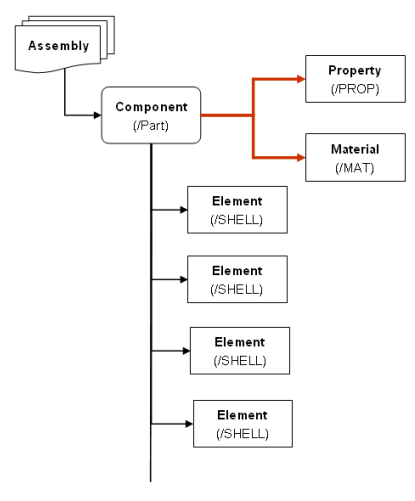
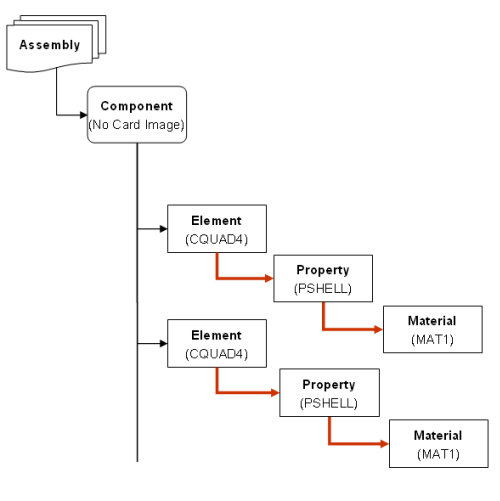
Figure 1. Solver Group 1. OptiStruct, Abaqus, Nastran


Figure 2. Solver Group 2. Radioss, ANSYS, LS-DYNA, PAM-CRASH, Permas
(c) 2021. Altair Engineering Inc. All Rights Reserved.

Intellectual Property Rights Notice | Technical Support