
Add SimSolid Material Library
Add the SimSolid material library inside of Onshape and assign materials to parts.
For a video example of adding the material library, click here.
Material property for Onshape standard part libraries such as bolts, nuts and washers is supported. Just make sure the material name matches between the Onshape and SimSolid material libraries. Onshape standard content has names such as:
- Stainless Steel 304
- Steel Class 12.9
- Steel Grade 5
- (etc)
This material name is specified on the Onshape Insert parts and assemblies dialog. Create a custom material in the SimSolid material database to match this name. To learn how to create a custom material click here.
- Login to your Onshape account.
- In the Onshape window, click .
- On your account page, the Preferences tab.
- Scroll down the page to the Material Libraries section, then click the Add material library... button.
- In the dialog, click the Public tab.
- Select SimSolid materials from the list in the dialog.
-
Click Add.
SimSolid materials are added to the list of material libraries on the Preferences page.
Figure 1. 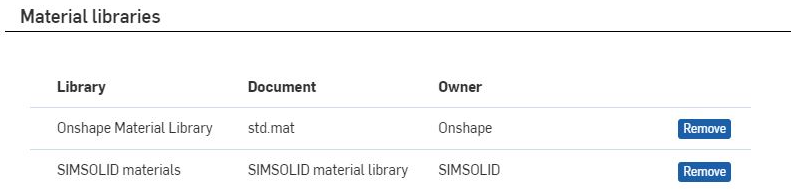
-
Assign materials to parts.
-
Select SimSolid
materials as the source, then select the material
name.
Figure 2. 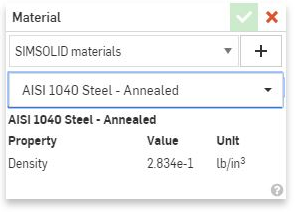
When you import your model into SimSolid, the assigned material property name automatically links to the corresponding SimSolid material. Manual material assignment is no longer required and material references are retained when the geometry is updated.Note: This works with both the desktop and cloud versions of SimSolid. -
Select SimSolid
materials as the source, then select the material
name.