


|
Setting Up Panopticon Visualization Server on Linux
Steps:
1. Extract the contents of the AltairPanopticonVisualizationServerWAR_<version number>.zip file to a new location.
This zip file will contain the following folder and files:
· pcli-java folder
· tomcat-users_example.xml
· start_Python_connectivity.sh
· start_Python_connectivity.bat
· pyro.py
· panopticon.xml
· panopticon.war
· OpenJDK11Dependencies_README.txt
· Panopticon Web Authoring Quick Start Guide
· Panopticon Web Authoring Guide
· Panopticon Visualization Server Installation and Reference Guide
|
NOTE |
To support Python Transform, the following files are included in the installation zip file: · start_Python_connectivity.sh · start_Python_connectivity.bat · pyro.py Refer to Python Integration for more information.
|
2. Create the AppData folder (i.e., /usr/share/vizserverdata) and ensure that the user account Local Service running Tomcat has read/write and execute permissions to this folder.
3. In the Tomcat config folder (/TOMCAT_HOME/conf/Catalina/localhost) create the panopticon.xml file with the following information:

|
NOTE |
Update this file if the path of the environment variable DatawatchVDDAppData is different from /usr/share/vizserverdata or the data folder created in step 1.
|
4. Specify the license type that will be used. Use either of the following license types:
· Volume License file (DatawatchLicense.xml) that must be copied to the designated AppData folder
· Altair Units license. Refer to Using Altair Units License in the Panopticon Visualization Server for more information.
· Hosted Altair Units license. Refer to Using the Hosted Altair Units License in the Panopticon Visualization Server for more information.
5. Copy the panopticon.war file into the Tomcat webapps folder (/TOMCAT_HOME/webapps).
6. For a basic installation using the Tomcat inbuilt XML file user directory, copy the provided tomcat-users_example.xml and overwrite the existing tomcat-users.xml file which is available in the Tomcat config folder (/TOMCAT_HOME/conf).
The provided tomcat-users_example.xml contains the following roles and users:
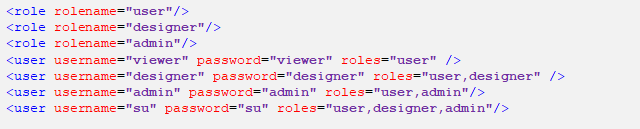
|
NOTE |
In Panopticon 2020.0 and onwards, the Administrators.txt and AdministratorGroup.txt files are no longer used to authorize administrator users. The function provided by these files has been replaced by a set of properties in Panopticon.properties: access.default.roles=VIEWER access.administrator.groups=admin access.designer.groups=designer access.viewer.groups= The access.default.roles property defines the default roles assigned to any user accessing the server, defaulting to VIEWER. The administration (access.administrator.groups property) and content creation (access.designer.groups property) on the server are mapped by default to groups named "admin" and "designer". For more complex authentication and user directory options, see section [3] Authentication.
|
|
NOTE |
· Before proceeding to step 7, ensure the Tomcat temp folder (e.g., (/tomcat_home/temp) is available. · You can opt to choose a different temp folder with the CATALINA_TMPDIR environment variable. For example:
|
7. Start Tomcat to deploy the panopticon.war file.
In the AppData folder (/usr/share/vizserverdata), the .repository, CacheData, Datatables, GlobalCaches, JavaScriptConfiguration, Schedule, Sounds, Statistic, Themes, Token, and UserData folders are generated along with the DefaultSettings.xml, Panopticon.properties and Parameters.json files.
8. Increase the Java heap size of Tomcat.
9. You can also opt to install Java data connector’s dependencies.
10. You should now be able to log on to the Panopticon Visualization Server using the following:
[Host Name]:[Port]/[Name of your application]
For example:
http://localhost:8080/panopticon