Animation Settings
Modify the animation settings from the animation toolbar.
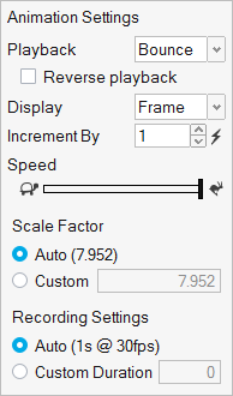
Figure 1. Animation Settings
- Playback
- Select whether to play the animation on a continuous Loop, Once, or Bounce (between forwards and backwards). Select the check box to Reverse Playback.
- Display
- Set the units for the slider to either Time or Frame.
- Increment By
- Increase the value in the counter to skip frames during playback. The reset button restores the default value of 1.
- Speed
- Drag the slider to change the speed of the animation.
- Scale Factor
- Enter a custom value to change the scale of the animation. Generally the scale of a displacement is too small to see clearly, so auto scaling is enabled by default.
- Recording Settings
- The default Auto setting gives you an estimate of the duration of the recording at 30 frames per second. If your video plays back faster than you want, select Custom Duration to change the length of the video; this will adjust the frame rate to try to achieve the specified duration. The Custom Duration has a minimum value of 1 second, and maximum value of 30 seconds.