


|
Editing a Summary Definition
You can edit a summary to change its name, select a different filter to apply when building the summary, add or remove key fields, measures or item fields, or edit the properties of key, summary, or item fields.
Editing summary properties
Steps:
-
Go to Summary Design.
-
Select a Summary from the Summaries selector. The Summary's properties are displayed on the Summary Window.
-
Edit the properties.
Editing summary field properties
Steps:
-
Go to Summary Design.
-
Select a Summary from the Summaries selector. The Summary's properties are displayed on the Summary Window.
-
Edit the summary's properties.
-
If you wish to view or edit summary fields, do one of the following:
-
If you wish to view or edit all fields, select All Fields from the Summary Design ribbon.
-
If you wish to view or edit just keys, items, or measures, select Keys, Items, or Measures respectively from the Summary Design ribbon.
-
Select a field from the fields selector and edit the properties on the tabs displayed. Note that different tabs display for different types of fields:
-
Refer to Summary Keys window for information on key field properties.
-
Refer to Summary Items window for information on item field properties.
-
Refer to Summary Measures window for information on measure field properties.
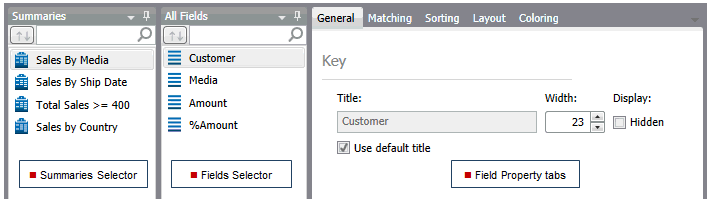
For more information on field tabs and specific properties: