The entire session is shown in the Parameters Browser, but you can
simplify the list by using the filters at the top of the browser. To access the filters, right-click in the Parameters Browser and click Show Filter: Figure 1.
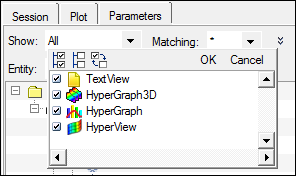
Show
Allows you to select specific client type(s) to display. Check those you
want to display in the browser; uncheck to hide. Click
OK to close
the window. Figure 2.
Click to select all client types.
Click to deselects all client types.
Click to reverse the current selection.
Matching
You can also select groups of entities based on a wildcard search. For
example, if you type *collector and press
Enter, all entity types ending with
"collector" will be checked and display in the list. You can fine-tune
the search by selecting one of the following options from the icon:
Match case
Only selects items that match the entered text exactly,
including upper/lower case letters.
Whole name
Only selects items whose entire name matches the specified
text. For example, typing pillar in
the Matching: field when using the Whole name option will
not locate a component named "CH-A-PILLAR-B-I-L". To find
such a component, you would need to run a wildcard search
for something such as *pillar*.
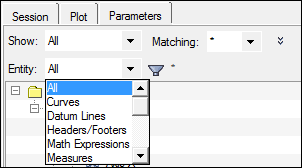
Entity
Distinguishes which types of entities to display. Select an option from
the drop down menu to display only that entity type. Select
All to display all entities. Figure 3.
Options include: Curves, Datum Lines,
Headers/Footers, Math Expressions,
Measures, Notes, Plot
Colors, Results,
Sections, Titles,
Tracing, and Tracking.
Filter,
Activates a field for entering text to display only those items that
contain that text. For example, entering "*color"
displays all attributes that specify colors.
Save
Saves the current session, with the parameters selected, as a report
template automation script (*.tpl file). This
script can be run at any time from the Flexible Report
Templates dialog.

 to select all client types.
 to deselects all client types.
 to reverse the current selection.
  icon:
icon: