



|
Saving Model Files to a Local Folder
Let’s save a model file to see how this works.
Steps:
1. Select File, click on the arrow
of the Save  menu, and then select Model.
Remember that in a previous lesson, we created an exclusion template. This template is a new feature made available only in Monarch 13.2. Models saved using this template may not function properly when opened in a previous Monarch version, such as Monarch 13.1. The same problem is encountered when saving models containing character list traps, which are not supported in earlier Monarch versions. The following compatibility warning displays to remind you of this limitation.
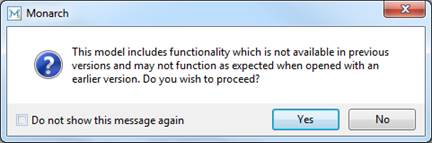
Figure 8-47. The error message that displays when saving a model using a new Monarch feature.
2. Check the box for Do not show this message again to prevent Monarch from displaying this error message in future sessions.
3. Select Yes to continue saving the model.
If you provided credentials to allow saving of projects and models to a Datawatch Server library and/or Amazon S3 folder and selected Prompt as a default Save Project and Save Model behavior (these details can be specified in the Options Interface), the following dialog displays when you attempt to save the current model:
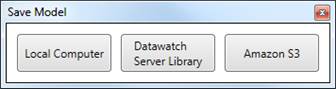
Figure 8-48. The Datawatch Server library called when you save a model or project.
4. Select Local Computer to save the current model and perform Steps 5–6 below as usual.
If you did not provide any credentials, this dialog will not appear and you can proceed to Step 5.
The Save Model dialog displays.
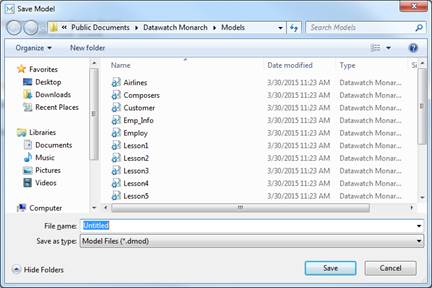
Figure 8-49. The Save Model dialog box.
5. Navigate to the folder you would like to save the model file to.
6. Type ClassicLesson1 in the File
name box then click Save  . The .dmod extension will be
added automatically to the file name.
. The .dmod extension will be
added automatically to the file name.
7. Select File once more and then
click Close All  to close the Classic.prn report and
model.
to close the Classic.prn report and
model.