


|
Creating a New Theme
Creating a new theme allows setting the colors, fonts, color palettes, general colors, and shape palettes to be used in workbooks and visualizations.
Steps:
1. On the Themes page, click  .
.
The New Theme page displays.
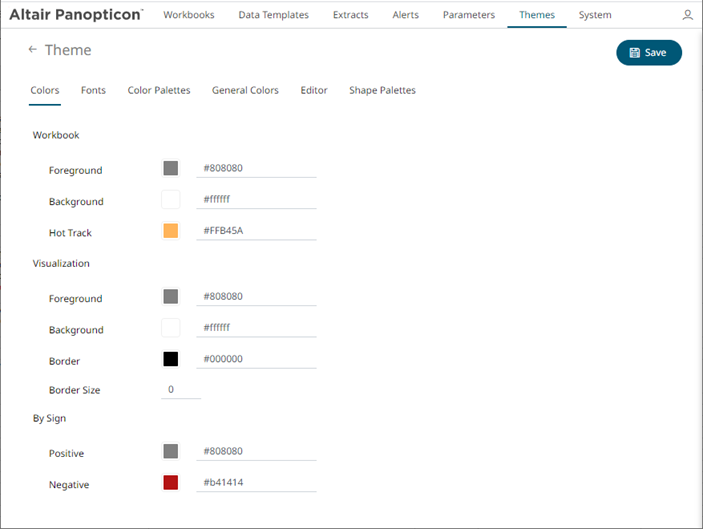
2. Click on Theme and enter a new Name then
click  .
.
|
NOTE |
Name can only contain letters, numbers, and underscores.
|
3. On the Colors tab:
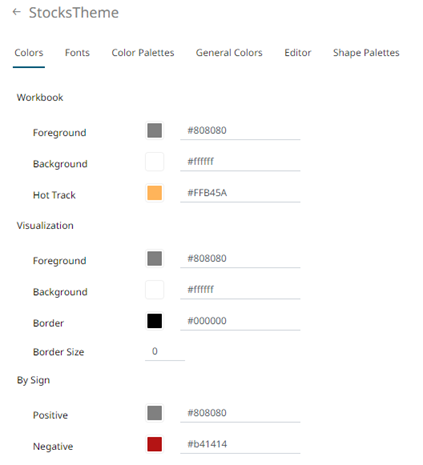
To modify the colors of the following:
· Foreground, Background, Border, and Hot Track properties of workbooks or visualizations.
· Positive and Negative values for the By Sign option used in numeric visual members.
you can either:
¨ click the corresponding Color box to display the Color dialog to:
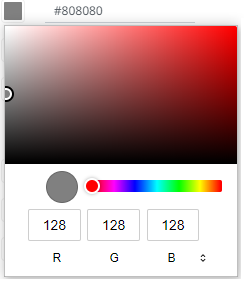
o select the color, or
o click
 to
enter the values
to
enter the values
for RGB
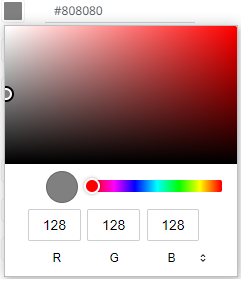
for HSL
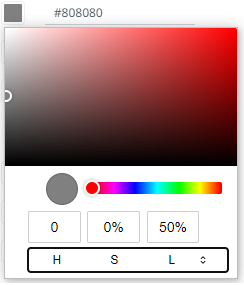
for the Hex color code
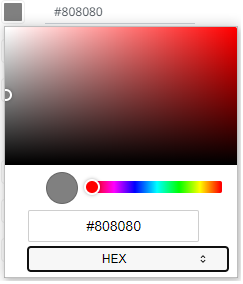
¨ or enter the Hex color code

4. Enter the Border Size of the visualizations.
5. To set the fonts to be used, click the Fonts tab:
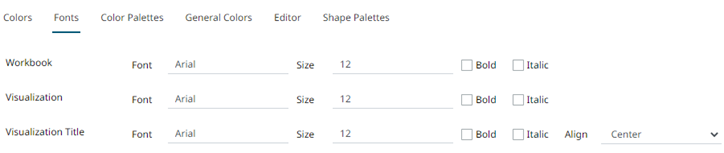
6. For the workbooks, visualization and visualization titles, enter the preferred font Type and Size and check the style boxes: Bold and Italic.
7. Select the visualization title Alignment: Left or Center.
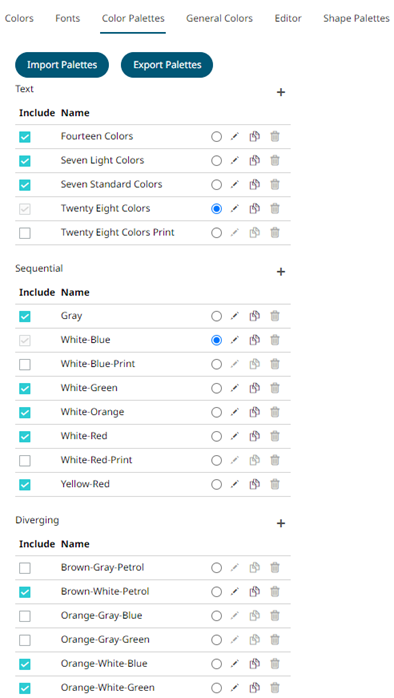
8. To select the Diverging, Sequential, and Text color palettes to use within the workbooks, click the Color Palettes tab.
|
NOTE |
For more information on how to create, modify, duplicate, or delete Text, Sequential, or Diverging Palettes, refer to the sections below.
|
9. Check the boxes of the provided color palettes that will be included for each category.
10. Click the radio button of the preferred Default color palette for each category.
11. To upload color palettes, click  . The Upload Color Palette dialog displays.
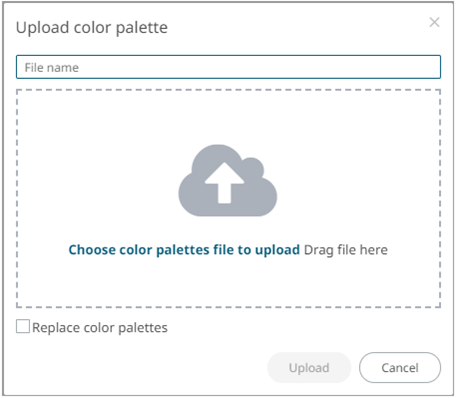
12. To upload a color palette, either:
· drag the file from your desktop and drop on the dialog, or
· click Choose color palettes file to upload and then browse and select one on the Open dialog that displays
The name of the color palette is displayed on the uploaded color palette area and in the Name box.
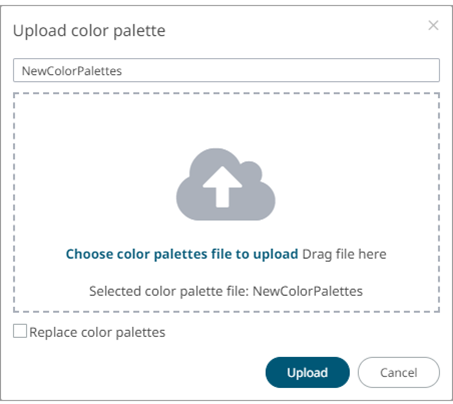
You can opt to rename the uploaded color palette.
13. To replace the color palettes, check the Replace Color Palettes box.
14. Click  .
.
A notification displays once the color palettes file is uploaded.
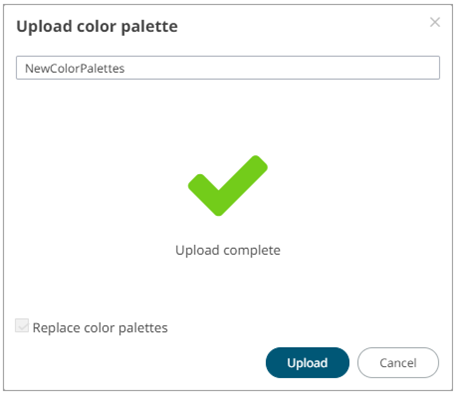
15. To export color palettes, click  . The .excp file is exported. You can now move this file to the
desired location.
. The .excp file is exported. You can now move this file to the
desired location.
16. To set the general colors to be used for visualizations, click the General Colors tab.
By the default, the new General Colors is named GeneralColorsTheme. This is the default general colors for the new theme and cannot be deleted.
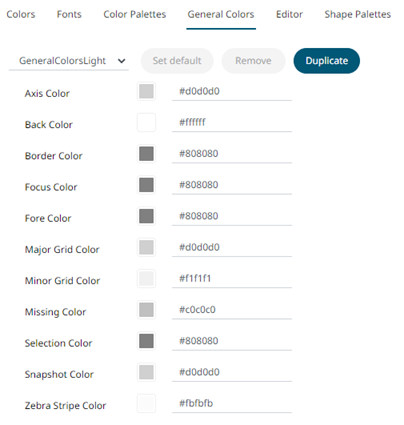
17. Click any of the color boxes to display the Color dialog.
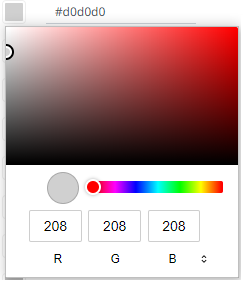
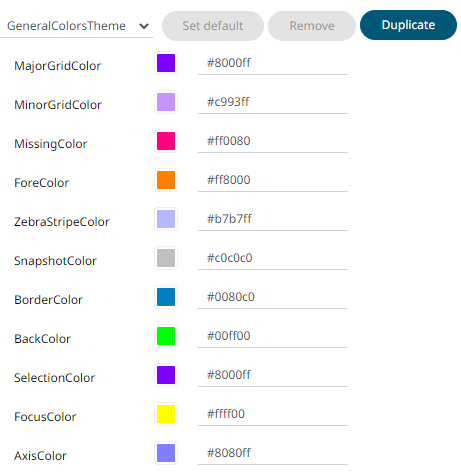
Select or specify the new general colors: AxisColor, BackColor, BorderColor, FocusColor, ForeColor, MajorGridColor, MinorGridColor, MissingColor, SelectionColor. SnapshotColor,ZebraStripeColor.
Or enter the corresponding Hex color code.
For example:
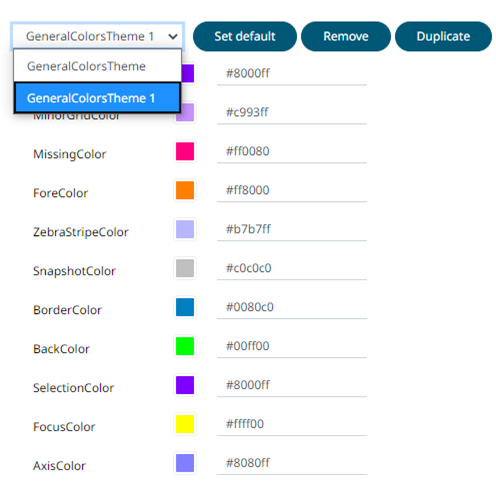
18. Click  to make a duplicate copy of the new general colors.
It will be added in the General Colors drop-down list.
to make a duplicate copy of the new general colors.
It will be added in the General Colors drop-down list.
|
NOTE |
The Set Default and Remove buttons are now enabled.
|
Repeat step 17 to modify the general colors.
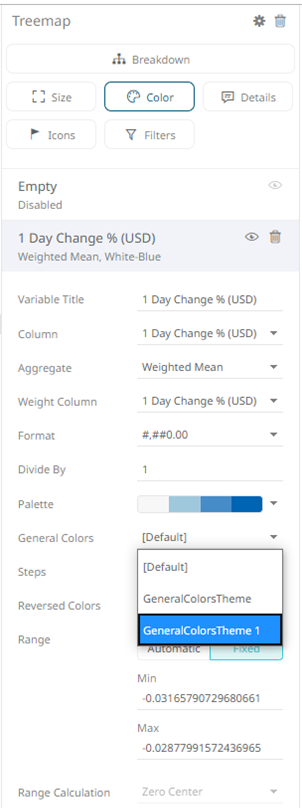
Once the new theme is saved and selected in the opened workbook, all of the defined General Colors will be added as options in the General Colors drop-down list of a Color variable in a visualization.
For example:
19. Select any of the duplicate general colors and click
 to make it the default.
20. To delete any of the duplicate general colors, select
it in the General Colors drop-down list and click  .
.
21. To set the Foreground, Background, Button, Button Foreground, and Input colors for the editor style of the Dark theme, click the Editor tab.
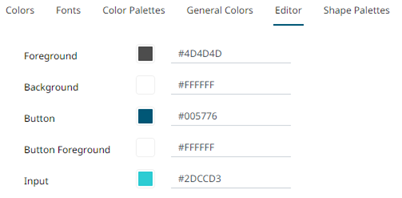
22. Click any of the color boxes to display the Color dialog and select or enter the preferred color.
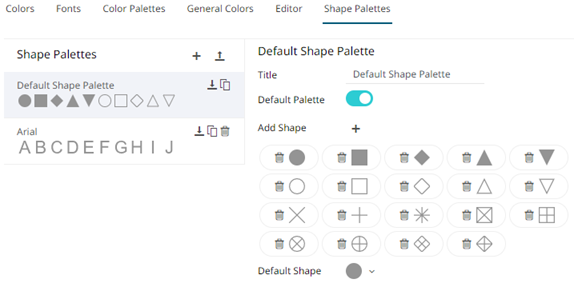
23. To set the shape palettes that can be used with the workbook theme, click the Shape Palette section to expand.
24. Click Save  to
save the new theme.
to
save the new theme.
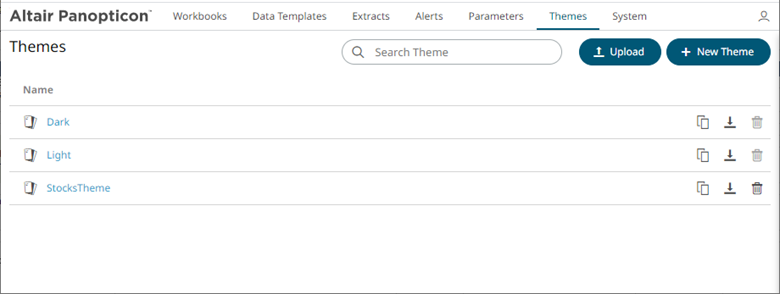
Clicking the  displays the Themes
page with the new theme added in the list.
displays the Themes
page with the new theme added in the list.
|
NOTE |
Unlike the default Dark and Light themes, new themes can be deleted.
|