Vertica
The Vertica connector allows connection to the HPE Vertica databases. To use the Vertica connector, the HPE Vertica ODBC driver must be first installed.
The required ODBC drivers are available for download here: https://my.vertica.com/download/vertica/client-drivers/
NOTE: Starting 16.2, this connector is deprecated. The Database connector or JDBC Database connector should be used. Existing workbooks will continue to operate for this 16.2 release, but connectivity will need to be migrated for subsequent releases.
Using Vertica
-
Launch the Connect to Data dialog and then select Vertica.
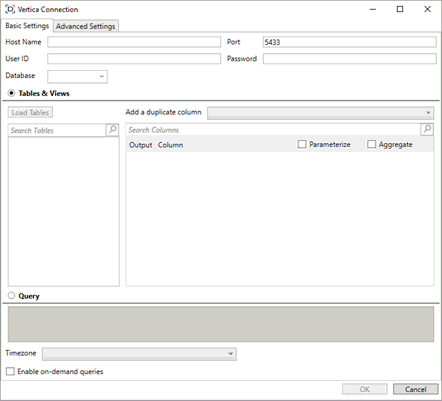
The Vertica Connection dialog displays.
-
Select the Basic Settings tab. If you will use the Advanced settings, proceed to step 13.
-
Provide the hostname, user ID, and password required to connect to the HPE Vertica database you wish to access. If the port you wish to use is different from the default port, change the default value to the correct one.
The hostname, password, username, and database name can be parameterized to allow dynamical data retrieval.
-
Select the database to which you want to connect.
-
The easiest way to select a table and/or view to load is by choosing from a set of predefined tables and views. To do so, ensure that the Tables & Views button is selected. If you wish to manually construct a SQL query to pull and load a data, ensure that the Query button is selected. Once either a table or view or a query has been selected, the OK button at the bottom of the dialog is enabled.
-
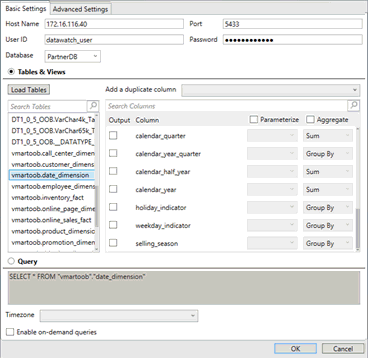
Click Load Tables to load a list of predefined tables or views. This list can be filtered by entering an appropriate string in the Search Tables search box.
You can also add a duplicate column.
-
Select a table to display the available columns in the Search Columns list. Once a table has been selected, the Query text box is updated to reveal the results of a SELECT * FROM TABLE query. Any other selection made updates the Query text box accordingly.
-
Select the columns to add to your data table by checking their corresponding Output Column box.
-
If you wish to parameterize a specific column, check the Parameterize checkbox and, in the dropdowns that display, select the desired value.
-
If the data returned is to be aggregated, check the Aggregate checkbox. The following aggregation methods are possible:
-
-
Text Columns: Group By
-
Date Columns: Count, Min, Max, Group By
-
Numeric Columns: Sum, Count, Min, Max, Group By
-
Numeric Columns: Sum, Count, Min, Max, Group By.
-
The time zone of input parameters and output data is, by default, unchanged. Changing the time zone is supported by using the Timezone list box based on the assumption that data are stored in UTC time and outputs are presented in the selected time zone.
-
Check the box for Enable on-demand queries if you would like to enable this function.
-
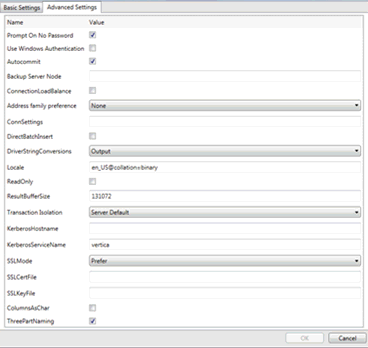
For the advanced settings, select the Advanced Settings tab.
-
You can opt to enable the Prompt on No Password, Use Windows Authentication, and Autocommit.
-
Enter the Backup Server Node.
-
Select the Address Family Preference: None, Ipv4, or Ipv6.
-
Enter the ConnSettings.
-
Enable the DirectBatchInsert.
-
Select the DriverStringConversions: None, Input, Output, or Both.
-
Set the Locale.
-
Check the ReadOnly box if the file is read-only.
-
If the ResultBufferSize you wish to use is different to the default size, change the default value to the correct one.
-
Select the Transaction Isolation: Read Committed, Serializable, or Server Default.
-
Enter the Kerberos Hostname.
-
If the Kerberos Service Name is different to the default, change the default value to the correct one.
-
Select the SSL Mode: Require, Prefer, Allow, or Disable.
-
Enter the SSL Cert File and SSL Key File.
-
Enable the Columns As Char checkbox.
-
Enable the Three Part Naming checkbox.
-
Click OK. The source table is returned in Data Prep with the Vertica database title, and all fields displayed in the Data Source Preview.