


|
3D Surface Plot Settings
3D Surface Plots are a 3D perspective version of the 2D Surface Plot.
They provide a clearer understanding of the overall “shape” of the surface but they also introduce occlusion problems; not all data points can be seen due to the display perspective.
The Surface Plot 3D is made up of a series of points where each point has:
q X Position
q Y Position
q Z Position (encoded by color)
The Surface Plot 3D can support data sets where the X and Y positions can both be regular and irregular in their distribution.
The color scale can be continuous or stepped to show a surface gradient.
Grid lines, a ground plane, and markers for data points can be shown if required.
The 3D surface
plot settings pane is displayed after clicking the Settings
 icon
or the Visualization Title (i.e., Surface Plot 3D):
icon
or the Visualization Title (i.e., Surface Plot 3D):
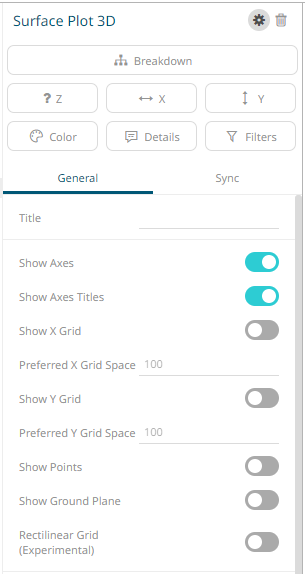
|
Setting |
Description |
|
Show Axes |
Determines whether axes are displayed. |
|
Show Axes Titles |
Determines whether axes titles are displayed. |
|
Show X Grid |
Determines whether the X Grid lines are displayed and if checked, the space in pixels between them. |
|
Preferred X Grid Space |
Specifies the X Grid lines spacing. Default is 100. |
|
Show Y Grid |
Determines whether the Y Grid lines are displayed and if checked, the space in pixels between them. |
|
Preferred Y Grid Space |
Specifies the Y Grid lines spacing. Default is 100. |
|
Show Points |
Determines whether markers are drawn over surface data points. |
|
Show Ground Plane |
Determines whether a ground plane should be drawn below the 3D surface |
|
Rectilinear Grid |
Determines whether distinct X and Y values are changed into a rectilinear grid where missing values are filled in with a default of zero (or the ground level). |