



|
Switching from Data Prep Studio to Monarch
To access
Monarch from Data Prep Studio, select Application Menu
 > Switch to Classic Mode
and then choose Classic Mode. When launching Monarch Complete
for the first time, the Choose Startup View dialog displays.
> Switch to Classic Mode
and then choose Classic Mode. When launching Monarch Complete
for the first time, the Choose Startup View dialog displays.
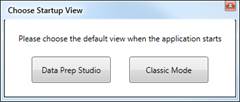
Figure 4-109. The Choose Startup View dialog.
The Home screen of Monarch displays.
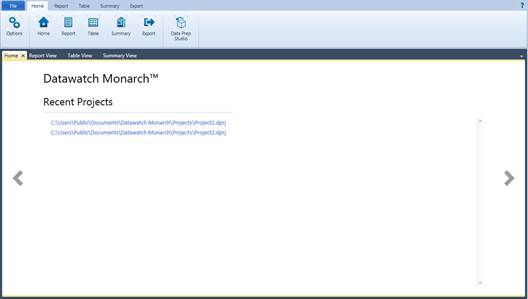
Figure 4-110. Monarch Classic’s Home screen.
When you specify Classic Mode as the startup view, sessions after the current one will automatically display the Monach Classic view when the application is run. Conversely, if you specify Data Prep Studio as the startup view, all sessions after the current one will automatically display the Data Prep Studio view when the application is run.
If you wish
to work with Data Prep Studio when the startup view is Monarch Classic,
click the Data Prep Studio  button on the Home ribbon.
|
|
NOTE You may also switch to Monarch Classic mode when in the Report Discovery window. While defining fields in Report Discovery mode, you may wish to open the report in Monarch to take advantage of Monarch’s more-advanced field-capture abilities. To do so, click the Edit in Classic Mode located on the toolbar of the Report Discovery window. |
|

Congratulations! You have just completed the Data Prep Studio lessons. We hope you have found them to be a helpful introduction to Data Prep Studio’s capabilities.
For additional information not covered by this tutorial, we suggest you thoroughly explore Data Prep Studio’s help system. To do so, simply click the following link:
http://docs.datawatch.com/dps/help/desktop/About_Monarch_Data_Prep_Studio.htm
More documentation on Data Prep Studio is also available on http://docs.datawatch.com/dps/.
The previous lessons reveal that users who wish to open database tables quickly, clean them, and transform them for further application, such as in data visualization, may find Data Prep Studio a great solution to their needs. However, while data extraction from reports and export capabilities are also provided in Data Prep Studio, these features may not be adequate when you want to extract data from some file types, such as .TXT, or export to a specific format not supported by Data Prep Studio. To do these, you will need to work with Monarch Classic.