



|
Modifying Items in a Change List
Now that you
know that you can reverse changes you have applied to your tables
by using the Change History functionality, what happens if you simply
want to modify – not reverse – a change, such as a formula field?
You can modify changes such as filters and calculated field definitions
by clicking on the Edit  icon
that displays to the right of a change in the Change History list.
Note that if this icon does not appear, the change cannot be modified.
icon
that displays to the right of a change in the Change History list.
Note that if this icon does not appear, the change cannot be modified.
Clicking the
Edit icon
launches the relevant dialog to enable you to modify your change.
If you were to modify the calculated field you added to your table
in the previous exercise, for example, you would click on the edit
button in the change marked
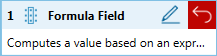
in your Change History list. Doing so will launch the Update Calculated Field dialog.
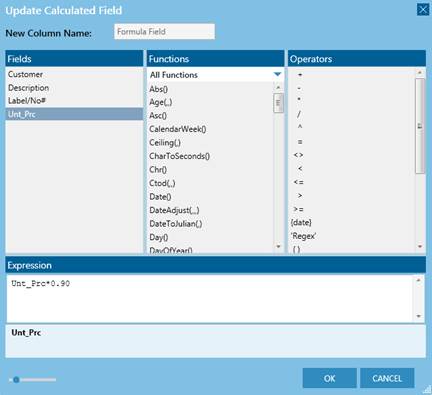
Figure 4-92. Clicking the Edit button that appears on a change in the Change History list launches the relevant dialog.