



|
Removing/Showing Duplicates
You can remove or show duplicate rows from tables by selecting Transform and, in the dialog that displays, clicking the Remove/Show Duplicates option.
Removing Duplicates
You can remove duplicate data from a table.
Steps:
1. In the Prep Data window, view the table with duplicate rows to remove and then select Transform > Remove/Show Duplicates. The Remove/Show Duplicates dialog displays.
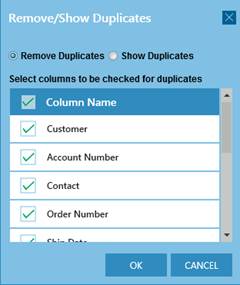
Figure 4-72. The Remove/Show Duplicates dialog.
2. Select Remove Duplicates.
3. If you wish to remove duplicates from all columns, select Column Name and then click OK.
4. If you wish to remove duplicates from select columns instead, untick the box for Column Name and then tick the boxes for these columns from the column selector and then click OK.
The resulting table displays.
Showing Duplicates
Instead of removing duplicates, you can also show rows with duplicate data as a new table.
Steps:
1. In the Prep Data window, view the table with duplicate rows to show and then select Transform > Remove/Show Duplicates. The Remove/Show Duplicates dialog displays.
2. Select Show Duplicates.
3. If you wish to show duplicates from all columns, select Column Name and then click OK.
4. If you wish to show duplicates from select columns instead, untick the box for Column Name and then tick the boxes for these columns from the column selector and then click OK.
The resulting table displays.
More information on removing/showing duplicates can be found here.