



|
Connecting to Google Analytics
The following steps describe how to connect to data stored in Google Analytics.
Steps:
1. From the Preview Data window, select Add More Stuff.
2. In the Select Data Source to Open dialog that displays, select Google Analytics.
The Google Analytics Connection dialog displays.
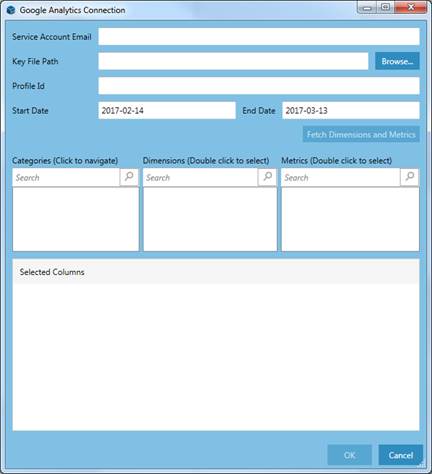
Figure 4-45. The Google Analytics Connection dialog.
3. Provide a service account email, key file path, and profile ID and indicate the start and end dates of the data you wish to fetch.
4. Click the Fetch Dimensions and Metrics button to populate the Categories, Dimensions, and Metrics list boxes.
5. Select the fields you want to add to your table from these lists and then click OK.
More information on this connector may be found here.
The Google Analytics example concludes our exercise on using the Datawatch Data Connectors. A full list of the connector dialogs available in Data Prep Studio is available here.
If you would
like to save this workspace to continue working on it at a later time,
you may do so now. Otherwise, select Application Menu
 > Close Workspace.