



|
Copying Models or Projects
Monarch Utility allows users to quickly and seamlessly copy models or projects from one folder or another, provided that the destination folder has proper write permissions.
Steps:
1. Launch the Monarch Utility by selecting Start > All Programs > Datawatch Monarch > Monarch Utility.
2. Select the button Copy models or projects from one location to another from the Monarch Utility wizard that displays. Click Next.
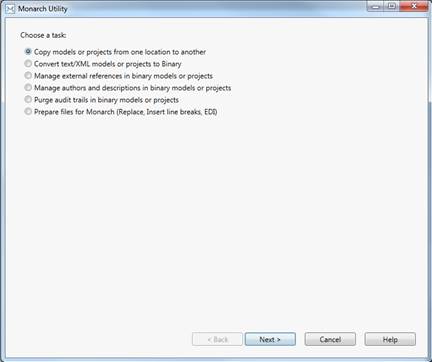
Figure 24-1. Monarch Utility allows users to copy models and projects from a source folder to a destination folder.
3. In the next screen that displays, enter
the path to the source folder containing the files you want moved
to a destination folder in the Source Folder screen. You can
use the Browse  button located beside this field
to search for the appropriate folder.
button located beside this field
to search for the appropriate folder.
4. Check the box for Include subfolders if you wish to copy all subfolders as well.
5. Enter the path to the destination folder
to which you want files copied in the Destination Folder screen.
You can use the Browse button located beside this field to search
for the appropriate folder.
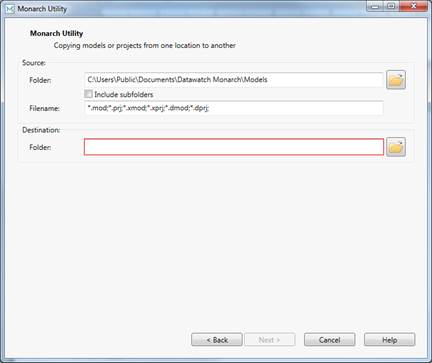
Figure 24-2. Specifying source and destination folders.
6. Click Next when you are finished.
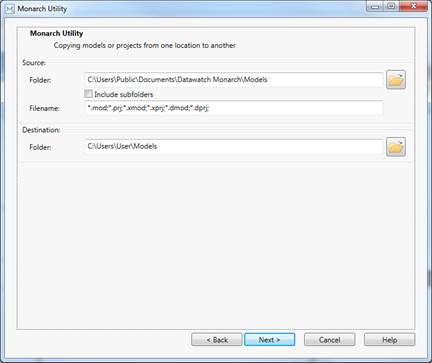
Figure 24-3. Instructions for the copy operation.
The next screen reiterates your instructions for the copy operation. Select Finish to proceed with copying if the indicated operation is correct. If you wish to make changes to the operation, select Back.
A process log showing the status of the copy operation displays.