



|
Setting Field Properties
Steps:
1. Double-click on the Net Income field to display its properties via the Field Properties window.
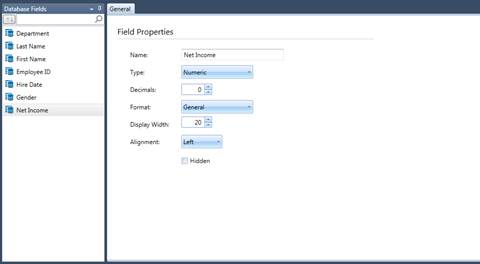
Figure 19-17. Field properties for the Net Income field.
Note that the decimal setting of this field is set to 0 (zero) and that its format setting is set to General. Let’s change the field format to Thousands and the decimals to 2. While we’re here, let’s change the name of this field to something more intuitive.
2. Change the field name to Salary
and then click the  button adjacent to this field.
3. Click the drop-down button on the Format list to display the available field formats.
Note that Monarch displays only numeric field formats. For fields imported from a database, Monarch does not allow you to change the base field type (from Numeric to Character for example).
4. Select Thousands as the new field format.
5. Change the Decimals setting to 2.
6. Click the Accept button to accept the changes to the field properties.
The Table is updated to reflect the changes.
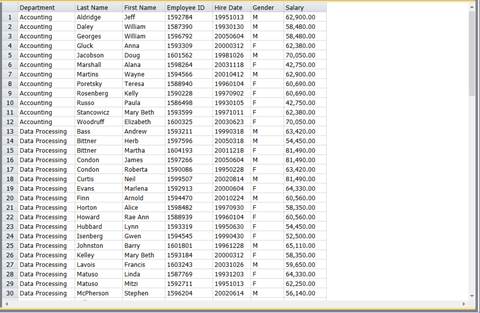
Figure 19-18. Salary field adjusted.