



|
Exporting to Tableau Server
Tableau Server, by Tableau Software®, is an online solution for sharing, distributing, and collaborating on content created in Tableau or exported to Tableau Data Extract form. Monarch offers a simple solution to allow data extracted in the application to be exported to Tableau Server quickly and seamlessly.
Steps:
1. Create an export and select Tableau Data Extracts (.tde) as an export file type.
2. If you created your export via the Create Export dialog, select Edit Advanced Options. If you created your export via Export design, you will not need to perform this step.
3. Check the box for Publish to Tableau Server.
4. The information you entered to access Tableau Server in the Security tab of the Options window displays. If you did not provide the necessary information in this tab, you can do so now.
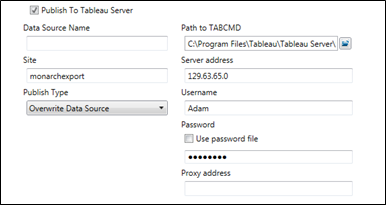
Figure 18-18. Specifying Tableau Server connection settings.
|
|
NOTE You can skip this step if you have specified Tableau Server connection settings in the Security tab of the Options window. |
|

5. Enter a data source name into the field provided and select a publish type.
· Overwrite Data Source - This option will erase the existing data source and replace it with a new one containing the newly exported data.
· Replace Data - This option will erase all previous data in the data source and replace it with the newly exported data.
· Append Data - This option will append the newly exported data to the data in the existing data source.
6. Select Accept when you are finished to close Export Design view and add your newly defined export to the Export selector in Export view.
7. Run the export as usual.