



|
Viewing Other Measures
You may have noticed that our summary displays only a single measure calculation, even though it displayed two measures when we started this lesson.
When you elect to display values for a key field across the top of the summary, Monarch forms a two-dimensional matrix that displays a single measure at a time by default. To display results for a different measure, you can select it from the Active Measure drop-down list on the Summary window. This list displays the names for all measures included in the summary definition. When you select a measure from this list, the summary is redisplayed to show the results calculated for that field.
Steps:
1. On the Summary view ribbon, click the drop-down arrow of the Active Measure list box. This box currently displays “Amount.”

Figure 17-3. The Active Measure drop-down list in the Summary tab.
2. Select %Amount from the list of available measures.
The summary is re-displayed to show media sales as a percent of total sales. Note that the Summary line at the bottom of the summary displays the percentages represented by each media type across all customers and the rightmost column represents percentages for by each customer across all media types.
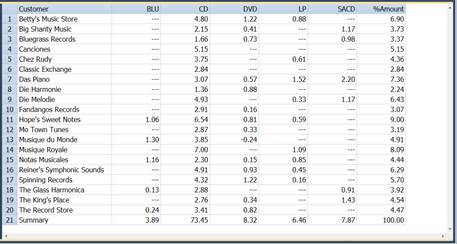
Figure 17-4. Viewing the %Amount measure.