



|
Suppressing Duplicate Values
Most report writers include a facility to suppress duplicate values for selected fields. Suppressing duplicate values reduces the amount of visual clutter in a report and helps to emphasize details. Monarch also includes this facility, allowing you to suppress duplicate values for any key field in a summary (except for the rightmost key field, which never contains duplicate values).
Let’s suppress duplicate values for theCustomer key field.
Steps:
1. Select the Keys button from the Summary Design ribbon.
A list of specified key fields as well as their corresponding properties displays.
The Keys screen includes several subtabs that organize key field properties into logical groups. The Layout subtab includes key field properties that determine how the key field is displayed, including an option to suppress duplicate values.
2. Select the field Customer from the Key Field Selector and then click the Layout subtab.
Locate the drop-down box for Orientation > Down, click the drop-down arrow, and then select Suppress duplicates.
3. Click Accept  to
accept the changes made to your summary.
to
accept the changes made to your summary.
The summary is rebuilt, and the duplicate customer names are removed.
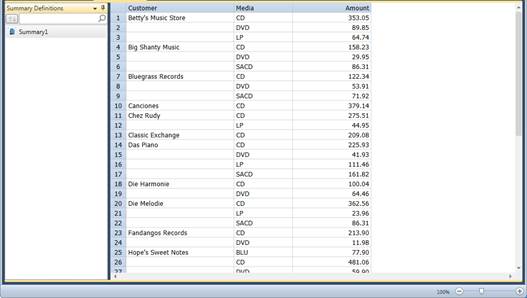
Figure 16-9. Duplicate values removed from the Customer column.