



|
Extracting an Address Block
The procedure for extracting the address fields is similar to extracting other fields. First, we’ll select a sample address block, then we’ll set a trap to capture all other address blocks throughout the report, and finally, we’ll highlight the address fields to extract.
Let’s start by selecting a sample address block from the report.
Steps:
1. Select Report Design  on the Report ribbon.
2. Click on the line selection area to the left of the line containing CUSTOMER and the first line of the address (i.e., Betty’s Music Store).
3. On the ribbon of the Report Design view, select the drop-down button for New Template and then select Append.
The first line of the address block is copied into the Sample Text box of the Template Editor.
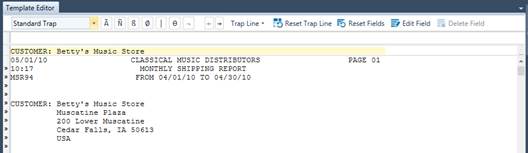
Figure 9-2. First line of the address block in the Template Editor.
4. Name this template Address Block.
5. Type customer in the Trap line above CUSTOMER in the sample line.
6. Highlight the field in the sample line, making sure you allow plenty of space for long address lines throughout the report.

Figure 9-3. Trapping the first line for the address block.
To capture the whole address block, regardless of the number of lines, we need to use the advanced field options available in Monarch.
7. Select Edit Field  from the Template Editor’s Action
bar.
from the Template Editor’s Action
bar.
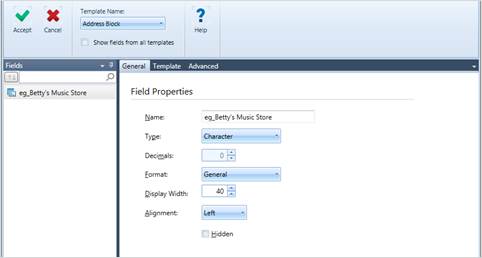
Figure 9-4. Field Properties window.
8. Choose the Advanced tab and then, under the End Field On heading, select the Blank Field Values radio button to terminate the field when a blank line or a series of blank lines is encountered. It is important to note that Monarch does not require the entire line to be blank, only the column positions occupied by the field.
9. Enter the number of blank field values required to terminate the field, which in this case is 1.
10. Return to the General tab, change
the field name to Customer Full, and then click the
 button that appears beside the
field.
button that appears beside the
field.
11. Change the field’s Type setting to Memo.
12. Click Accept  .
.
The address fields in the report are highlighted. Scroll through enough of the report to satisfy yourself that all instances of the address have been captured.
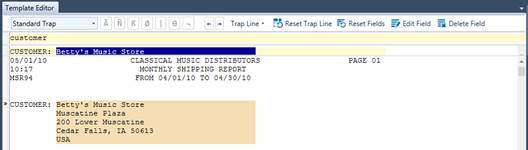
Figure 9-5. Viewing the trapped address block.
Note that this has correctly captured all of the addresses, even though some have four lines and some have five. This is the advantage of using the Advanced Field properties.
13. Click Accept  to
accept the template and close the Editor.
to
accept the template and close the Editor.