



|
Creating an Exclusion Template
Monarch offers a solution for instances where you may wish to exclude specific lines from being picked up by a previously defined template. To address this issue, you can create an exclusion template. For this exercise, open Classic.prn and Lesson8.dmod.
Steps:
1. In Report view, go to Page 4 of the Classic.prn report.
Note that this page includes details for a return authorization as well as the received date.
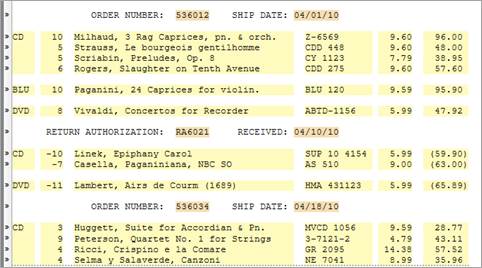
Figure 8-27. Page 4 of the Classic.prn report includes Return Authorization entries.
If we were to trap the order numbers using an exact trap (e.g., a colon), the return authorization will also be picked up. When we trapped the order number line in a previous exercise, we used an exact trap and specified that all order numbers beginning with 5 must be captured. But what happens when the order number begins with a 3 or a 4? Let’s use an exclusion template to address this issue.
2. Click on the line containing the return authorization entry and then drag your mouse down so that all of the details under this entry are highlighted. Select Report Design.
3. Select New Template > Exclusion.
4. On the trap line, click on the position right above the first letter of the word “Return” and then type in return.
Note the change to the report shown below.
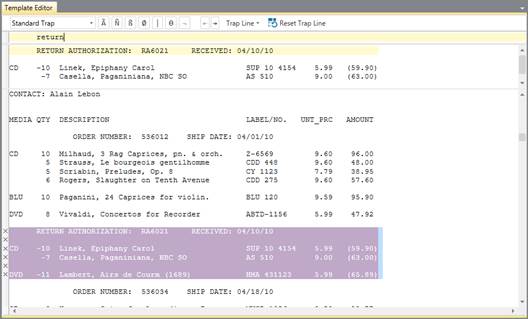
Figure 8-28. Excluding Return Authorization entries with an exclusion trap.
5. Select Accept.
The template we have just defined instructs Monarch to not pick up data from the line marked with “return” at position 7 up to the last detail entry in the highlighted block.
In Report view, the Return Authorization line is marked as follows:
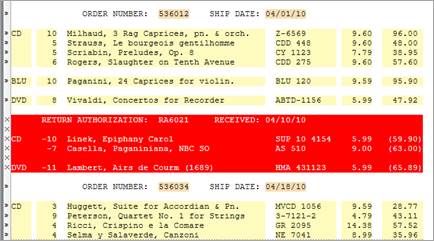
Figure 8-29. Report view showing markings of an exclusion template.
You can now trap the Order Number line using semi-colons if you wish.