



|
Creating Append Templates
In the Classic.prn report, orders are sorted by order number. Also at this sort level is the ship date. We’ll create an append template to extract these two fields and an additional append template to extract the account number and contact fields that appear at the next higher level.
The procedure for extracting fields from each sort level is the same as for extracting detail fields. First, we’ll select a sample, then we’ll trap the other occurrences of the sort level throughout the report, then we’ll highlight the fields we want to extract.
Steps:
1. In the same report, select Report
Design  once
more.
once
more.
2. Select the line containing the words ORDER NUMBER. This line is indented and appears below the line containing several field names and above the item details.
3. On the ribbon of the Report Design, select the drop-down button for New Template and then select Append. Ensure that the Trap Type is set to Standard Trap.
The Template Editor is activated and the line we selected is copied into the Sample Text box. Note also that the Template Name and Template Role fields are updated to reflect our selected template tape.
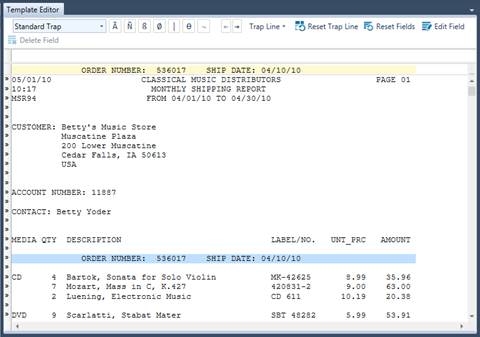
Figure 8-16. The selected ORDER NUMBER line.
|
|
NOTE There can only be one detail template for any model you create. The total number of all append and footer templates cannot exceed 20. For each footer template used, there is one less append template available. For example, if you create three footer templates, then only 17 appends can be used. |
|
