


|
Exporting a Summary in Data Prep Studio
You can export a summary to Excel or CSV files.
Note that data exported in Data Prep Studio to Excel files are exported as named ranges. Thus, when the table is opened, the worksheet name displayed corresponds to that of the named range.
Exporting summaries to CSV files
Steps:
-
Click the Export tab to display the Export window.
-
Click on the
 Add Export button located to the
right of the table from which you created a summary and then select
Export As > Summary
> CSV.
Add Export button located to the
right of the table from which you created a summary and then select
Export As > Summary
> CSV.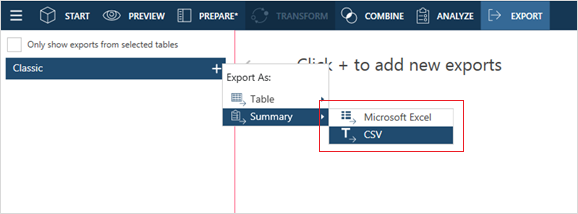
The table you selected displays in the Export Management panel and its properties display in the Export Properties panel.
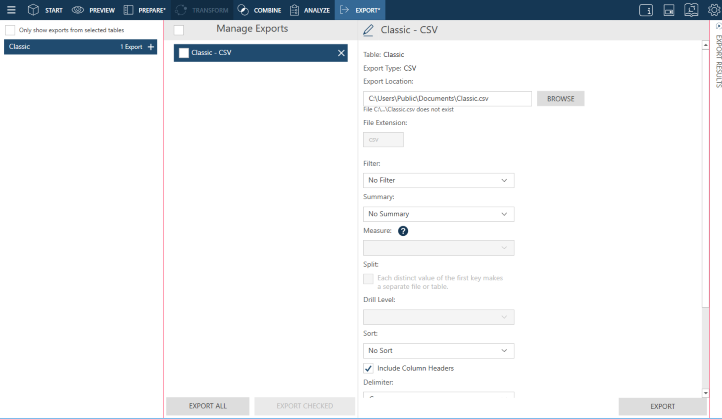
-
Rename the export if you wish by clicking on the Edit
 button located to the left of the Export name and then entering a
new name into the field.
button located to the left of the Export name and then entering a
new name into the field. -
Specify general export settings as necessary.
-
Overwrite the file.
-
Append records to the existing file
-
Skip the export operation.
-
Overwrite the file.
-
Append records to the existing file
-
Skip the export operation.
-
Click the Export button located at the bottom right of the window to execute the export operation.
When the export operation is completed, the Export Results panel displays. If the export was completed successfully, an export link will appear. Clicking on this link launches the folder to which you saved the exported summary.
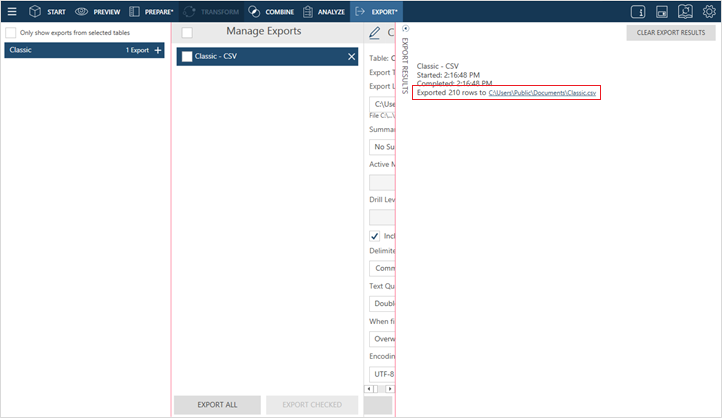
The table below describes settings for exporting summaries to CSV files.
|
Field |
Description |
|
Export Location |
This setting describes where the export file will be saved and what its name will be. Enter the path and name of the export file. |
|
Filter |
This specifying specifies which filter, if any, should be applied to the summary upon export. |
|
Summary |
This setting specifies which summary to export. Use the drop-down provided to select a summary. |
|
Measure |
When exporting an across-key summary (i.e., when you have a column key defined in your summary), this setting specifies which measure to apply to the summary. If your summary is an ordinary one, this setting is inactive. |
|
Split |
This setting is activated when a specific summary (other than All Summaries) is selected from the Summary drop-down and specifies that the export operation should create a file for each distinct value of the first key value. Thus, if you have a summary with four distinct values in the first key (row) column, the export operation will create four files. Note that selecting this setting disables the option to export All Summaries. Deselect this option if you wish to export all summaries instead. |
|
Drill Level |
This setting specifies what drill level to apply to the summary to be exported. A lower drill level means fewer columns in the output table. |
|
Sort |
This setting specifies which sort, if any, should be applied to the summary upon export. |
|
Include Column Headers |
Checking this setting instructs Data Prep Studio to include the column header in the export file. This header will become the first line in the export file. |
|
Delimiter |
This setting specifies the data delimiter to apply for CSV files. Select a delimiter from the drop-down. The delimiter will be used to separate column values. |
|
Text Qualifier |
This setting specifies a text qualifier to apply for CSV files. Select a text qualifier from the drop-down. The text qualifier tells you where text values begin and end. This is useful when you have text values that may contain the delimiter character you selected above. |
|
When File Exists |
This setting specifies what Data Prep Studio should do if a file with the same name exists in the folder you specified in the Export Location field. Select an action if the export file already exists: |
|
Encoding Type |
This setting specifies which encoding type to apply to the CSV file. At present, the encoding types Code Page, UTF-8, UTF-16LE, and UTF-16BE are accepted. |
|
Code Page |
When the encoding type selected is Code Page, this setting specifies which code page to apply to the CSV file. |
The table below describes settings for exporting summaries to Microsoft Excel files.
|
Field |
Description |
|
Export Location |
This setting describes where the export file will be saved and what its name will be. Enter the path and name of the export file. |
|
Table Name |
This setting assigns the table name in the Excel file obtained upon export. |
|
Filter |
This specifying specifies which filter, if any, should be applied to the summary |
|
Summary |
This setting specifies which summary to export. Use the drop-down provided to select a summary. |
|
Measure |
When exporting an across-key summary (i.e., when you have a column key defined in your summary), this setting specifies which measure to apply to the summary. If your summary is an ordinary one, this setting is inactive. |
|
Split |
This setting is activated when a specific summary (other than All Summaries) is selected from the Summary drop-down and specifies that the export operation should create a file for each distinct value of the first key value. Thus, if you have a summary with four distinct values in the first key (row) column, the export operation will create four files. Note that selecting this setting disables the option to export All Summaries. Deselect this option if you wish to export all summaries instead. |
|
Drill Level |
This setting specifies what drill level to apply to the summary about to be exported. A lower drill level means fewer columns in the output table. |
|
Include Column Headers |
Checking this setting instructs Data Prep Studio to include the column header in the export file. This header will become the first line in the export file. |
|
Delimiter |
This setting specifies data delimiter for CSV files. Select a delimiter from the drop-down. The delimiter will be used to separate column values. |
|
Text Qualifier |
This setting specifies a text qualifier for CSV files. Select a text qualifier from the drop-down. The text qualifier tells you where text values begin and end. This is useful when you have text values that may contain the delimiter character you selected above. |
|
When File Exists |
This setting specifies what Data Prep Studio should do if a file with the same name exists in the folder you specified in the Export Location field. Select an action if the export file already exists: |
|
Encoding Type |
This setting specifies which encoding type to apply to the CSV file. At present, the encoding types Code Page, UTF-8, UTF-16LE, and UTF-16BE are accepted. |
|
Code Page |
When the encoding type selected is Code Page, this setting specifies which code page to apply to the CSV file. |
Exporting summaries to Microsoft Excel files
Steps:
-
Click the Export tab to display the Export window.
-
Click on the
Add Export button located to the
right of the table from which you created a summary and then select
Export As > Summary
> Microsoft Excel.The table you selected displays in the Export Management panel and its properties display in the Export Properties panel.
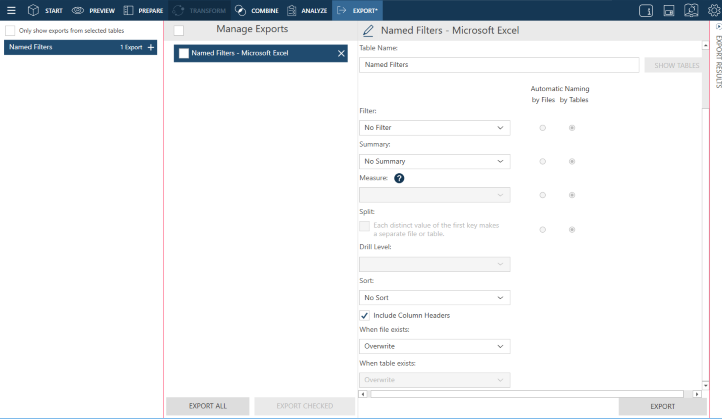
-
Rename the export if you wish by clicking on the Edit
button located to the left of the Export name and then entering a
new name into the field. -
Specify general export settings as necessary. The table below describes these settings.
Field
Description
Export Location
This setting describes where the export file will be saved and what its name will be. Enter the path and name of the export file.
Sheet Name
This setting specifies a name to apply to the summary worksheet.
Summary
This setting specifies which summary to export. Use the drop-down provided to select a summary.
Active Measure
When exporting an across-key summary, this setting specifies which measure to apply to the summary. If your summary is an ordinary one, this setting is inactive.
Drill Level
This setting specifies what drill level to apply to the summary about to be exported. A lower drill level means fewer columns in the output table.
Include Column Headers
Checking this setting instructs Data Prep Studio to include the column header in the export file. This header will become the first line in the export file.
When File Exists
This setting specifies what Data Prep Studio should do if a file with the same name exists in the folder you specified in the Export Location field. Select an action if the export file already exists:
-
Overwrite the file.
-
Append records to the existing file
-
Skip the export operation.
When Table Exists
This setting is activated only when the When File Exists option selected is append or skip. It specifies what Data Prep Studio should do if a file with the same table exists in the export file you indicated. Select an action if the export table already exists:
-
Overwrite the table
-
Append records to the existing table
-
Skip the export operation.
-
-
Click the Export button located at the bottom right of the window to execute the export operation.
When the export operation is completed, the Export Results panel displays. If the export was completed successfully, an export link will appear. Clicking on this link launches the folder to which you saved the exported summary.
NOTE: Data exported in Data Prep Studio to Excel files are exported as named ranges. Thus, when the table is opened, the worksheet name displayed corresponds to that of the named range.