Push, pull, scale, rotate, or project a face to modify the geometry of a
PolyNURBS.
Click Edit, or double-click a PolyNURBS object to enter
editing mode.
Choose from the following options:
To
Do this
Note
Push/pull a face (a precise distance)
Drag the face.
To push/pull the face a precise distance, enter a distance
in the microdialog.
Push/pull a selected face
When you select a face, an arrow appears at the center of
the face.
Drag the arrow at the center to push/pull the
face.
Hold down Ctrl while dragging to
create a new cage face.
Scale a selected face
When you select a face, planes appear at the corners of
the face.
Drag a plane at the corner to scale the face.
Hold down Ctrl while dragging
to scale the face about its center.
Hold down Ctrl+Shift while
dragging to scale the face about its center while
maintaining the original aspect ratio.
Rotate a selected face about its center
When you select a face, a curved arrow appears when you
hover over a corner or an edge. Figure 1. Hover over a cornerFigure 2. Hover over an edge
Drag the curved arrow to rotate the face about its
center.
Move an edge along the plane of a selected face
When you select a face, a straight arrow appears when you
hover over an edge.
Drag the straight arrow to move the edge along the
plane of the face.
Hold down Ctrl while dragging to
lengthen or shorten the original face symmetrically.

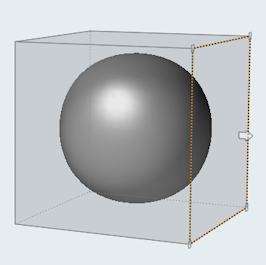
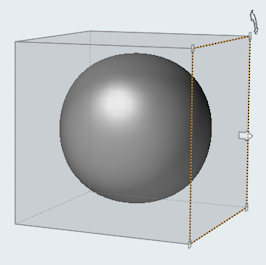 Figure 1. Hover over a corner
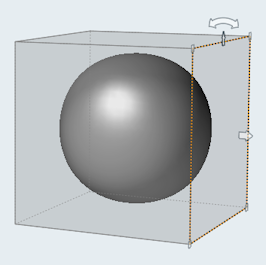 Figure 2. Hover over an edge
 .
. .
.